 Itemlume
PRACTICAL ANSWER / A+ product pages
Why do buyers confuse length, width and height in my listing?
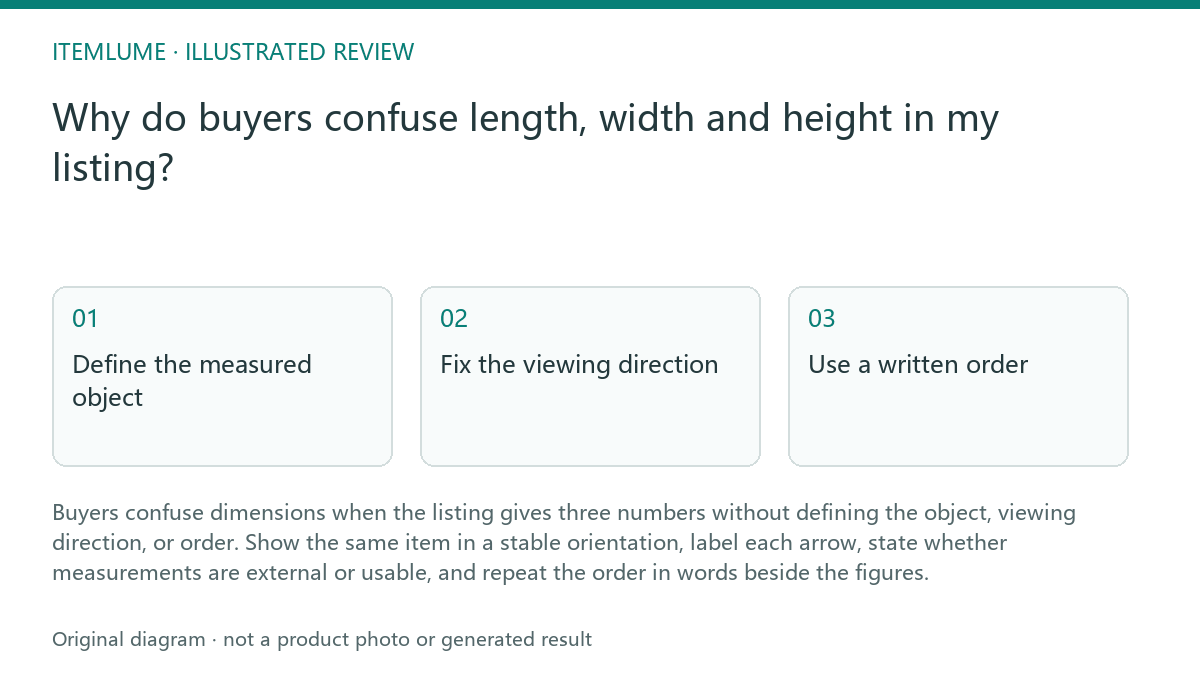
Buyers confuse dimensions when the listing gives three numbers without defining the object, viewing direction, or order. Show the same item in a stable orientation, label each arrow, state whether measurements are external or usable, and repeat the order in words beside the figures.
Define the measured object
Start by naming exactly what the numbers describe: the assembled tray, its lid, the internal compartment, or the package. A storage tray may have external dimensions of 30 × 20 × 8 cm while its usable space is smaller. These are different objects and should not share one unlabeled measurement line.
Write the measurement basis in ordinary language before designing the image. For example: “External size: 30 cm long, 20 cm wide, 8 cm high.” If the product has handles, feet, hinges, or a removable part, state whether they are included. This prevents a buyer from comparing an external product dimension with a shelf opening or internal capacity.
Fix the viewing direction
Length and width are relational labels, so the viewer needs a consistent front or reference side. Choose one orientation and keep it across the diagram, title, bullets, and any comparison module. Do not rotate the product between panels while keeping the same three labels.
Use arrows that touch the relevant edges and add text labels such as “length,” “width,” and “height.” Height should run vertically from the supporting surface to the highest included point. If the item is normally stored on its side, explain that orientation separately rather than silently redefining height.
Use a written order
Never rely on “30 × 20 × 8 cm” by itself. Put the order next to it: “Length × width × height: 30 × 20 × 8 cm.” Repeat the same order in the nearby copy. This matters when a marketplace template, translated page, or comparison table presents the numbers without the original diagram.
Keep units visible and consistent. If you provide inches as a conversion, identify them as converted values and avoid extra decimal places that suggest measurement accuracy you have not verified. The product page should distinguish a supplier specification from a value personally checked on a sample.
- 1. Identify the exact object and measurement basis.
- 2. Choose the normal viewing direction and mark the front.
- 3. Draw one arrow for each dimension, with height vertical.
- 4. Write the dimension order and units beside the numbers.
- 5. Ask someone unfamiliar with the product to explain the diagram; revise if their interpretation differs.
Review the buyer’s comparison task
A clear diagram still needs context. Tell buyers what to compare: external length against shelf width, height against clearance, or usable space against the items they plan to store. Do not imply that a dimension diagram proves fit. It only communicates the stated measurements; the buyer must check the destination space and any obstructions.
Review mobile and translated versions as separate reading experiences. Make sure labels remain attached to the correct arrows, the written order is not separated from the figures, and the image does not carry the only explanation. Keep the essential dimension statement in surrounding text as well as in the visual.
Dimension-label review
| Observation | Next check | Pass condition |
|---|---|---|
| The listing shows 30 × 20 × 8 cm with no labels. | Confirm the intended order in the source specification. | The page says “length × width × height” beside the numbers. |
| The tray is shown from an angled view with no front reference. | Compare the image with the product’s normal storage orientation. | A viewer can identify the front and the supporting surface. |
| The height arrow ends at a removable lid. | Check whether the lid is included in the stated external size. | The arrow and copy clearly state what is included. |
| The image describes outer size but the buyer needs storage capacity. | Locate the internal measurements or mark them unavailable. | External dimensions and usable space are named separately. |
| A translated page changes the order of the numbers. | Compare the translated text with the same labeled object and measurement arrows. | Every language preserves the documented dimension values and order. |
Sources and further reading
Sources for this page were checked on . Platform rules can change; verify the current source before publishing. Prompt examples and workflow recommendations are Itemlume editorial guidance, not independently measured results.
Frequently asked questions
Should I always list dimensions as length, width, and height?
Use that order when it matches your product specification, then state the order in words. Consistency matters more than choosing a universal convention.
What if the product can be placed in several orientations?
Choose the normal intended orientation for the main listing and explain any alternate placement separately. Do not relabel the same edges without warning.
Can a dimension graphic prove that the tray will fit a shelf?
No. It communicates the stated measurements but does not prove fit. Buyers should compare those measurements with the shelf opening, clearance, and obstructions.
BUILD FROM A PRODUCT YOU KNOW
Put this workflow into practice with your own product.
Explore the relevant tool first. AI copy and concept planning are free after sign-in. Image and video generation require available credits and the applicable account access.
Open A+ product pages Check pricing and credits