 Itemlume
PRACTICAL ANSWER / Product videos
Why does my vertical product video have black bars on every side?
Black bars on every side usually mean a 16:9 clip was already letterboxed, then placed inside a 9:16 sequence or player that added another fit treatment. Check the source pixels, sequence settings, and nested media sizing in order. Crop only after confirming where the padding was introduced, and preserve the product’s proportions throughout.
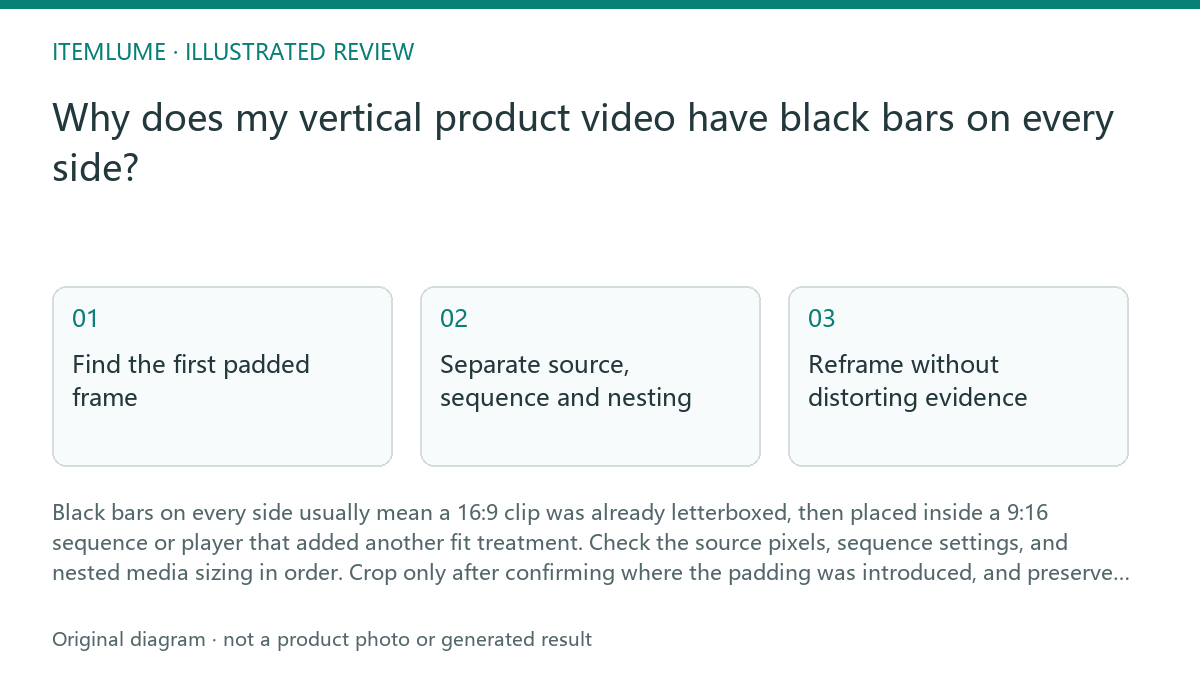
Find the first padded frame
Pause on a frame where the product is fully visible and inspect the actual image boundary. If the black area is already inside the exported source, the padding was baked into the clip before editing. If the source reaches all four edges but the editor preview adds bars, the problem is a sequence or display-fit setting.
A portrait player cannot recover image area that was exported as black pixels. Treat the inner picture as the usable source and record its ratio before making a change. Do not stretch the clip to fill the portrait canvas: that changes the product’s shape and can make visual evidence misleading.
- Open the original clip without the portrait project or player.
- Pause on a frame with a clear product edge and compare the picture boundary with the file boundary.
- Check whether black pixels belong to the source, the editing sequence, or the player preview.
- Remove only the layer that introduced the extra padding, then inspect the full-frame export.
Separate source, sequence and nesting
A 16:9 source inside a 9:16 sequence needs a deliberate crop, scale, or background treatment. It should not receive an additional “fit” operation after it has already been placed in a portrait composition. Double padding commonly appears when a letterboxed export is imported as if it were the original wide clip.
If the clip sits inside a nested composition, inspect both levels. The inner composition may contain its own bars, while the outer portrait sequence adds side or top-and-bottom margins again. Name each level in your review notes so a later export does not hide the cause.
- Compare the source dimensions with the inner composition dimensions.
- Open the outer portrait sequence and identify whether the nested item is set to fit, contain, or fill.
- Temporarily disable background or matte layers to distinguish design padding from accidental padding.
- Export a short test and inspect the pixels outside the product frame.
Reframe without distorting evidence
For a vertical product video, scale the usable picture until the product and its required context fit the portrait frame. A crop can remove empty sides from a wide shot, but it may also remove hands, controls, packaging text, or the contact surface that explains what viewers are seeing.
Use a fixed reference frame for every ratio. Mark the product’s left and right limits, top clearance, and any action area before adjusting the crop. If the portrait framing cannot preserve the necessary evidence without an awkward crop, return to the uncropped source or request a new composition rather than forcing the wide export to fill.
- Choose the evidence frame that must remain visible.
- Set a crop and scale that keep the product proportional.
- Review the opening, action, and ending frames for lost context.
- Stop and change the composition if a crop removes a required label, action, or product boundary.
Verify the export and the publishing handoff
Review the exported portrait file outside the editor because a player may add its own display treatment. Check the first frame, a movement frame, and the final stable frame. The product should remain undistorted, and the visible image should reach the intended portrait bounds without unexplained black regions.
Keep the diagnosis separate from publishing assumptions. Itemlume can support planning and quoted media workflows, but it does not publish the finished video to stores or prove product performance. The practical handoff is a correctly framed file plus notes identifying the source ratio, target ratio, crop decision, and any remaining intentional matte.
- View the export in a neutral player and compare it with the editor preview.
- Check one opening, one action, and one ending frame.
- Confirm the file contains intentional design space only where documented.
- Stop the repair when the product is distorted, essential evidence is cropped, or the bars originate in an unknown layer.
Double-padding review
| Observation | Next check | Pass condition |
|---|---|---|
| Black pixels are visible in the original wide file | Inspect the source before opening the portrait project | The source is identified as padded or clean, with its ratio recorded |
| The clean source fills the editor but the player adds bars | Compare sequence ratio and player fit mode | The portrait export reaches the intended bounds in a neutral player |
| Two nested compositions each show margins | Inspect inner and outer sizing separately | Only the documented matte or background remains |
| Cropping removes label text or the active demonstration | Return to the uncropped source and test a new composition | The product and required evidence remain visible without distortion |
| The product looks stretched after scaling | Check whether width and height were adjusted independently | Proportions match the source reference frame |
Sources and further reading
Sources for this page were checked on . Platform rules can change; verify the current source before publishing. Prompt examples and workflow recommendations are Itemlume editorial guidance, not independently measured results.
Frequently asked questions
Can I stretch a 16:9 clip to fill 9:16?
No. Stretching changes the product’s proportions. Crop, recompose, or retain intentional background space instead.
Why do bars appear only after upload?
The destination player may be fitting an already padded export. Compare the exported pixels with the player preview before changing the edit.
Should I regenerate the video?
Only when the clean source cannot preserve the required product evidence in the target ratio. First remove the layer that added the duplicate padding.
BUILD FROM A PRODUCT YOU KNOW
Put this workflow into practice with your own product.
Explore the relevant tool first. AI copy and concept planning are free after sign-in. Image and video generation require available credits and the applicable account access.
Open Product videos Check pricing and credits