 Itemlume
DIAGNOSTIC GUIDE / Packaging studio
Will the cut line in my packaging artwork be printed as a visible outline?
A cut line can print as an ordinary outline if it is included as normal artwork. Its name or separate layer alone does not prove that the supplier will treat it as a processing contour. Obtain the supplier’s specification, distinguish printing from finishing objects, and inspect the final separation and proof before approving production.
Ask what the supplier expects the contour to mean
Request the actual delivery specification for the job: contour naming, color type, layer treatment, export route, and whether the processing path belongs in the same file or a separate file. Do not assume that a familiar CutContour name works with every supplier’s system or order type.
Keep the original supplier template and its revision identity. An AI concept may show a decorative box edge that resembles a knife line, but it is not a verified cutting path. Distinguish a visual border, a structural dieline, and a production processing object before moving any of them into the final layout.
Inspect separation instead of just hiding a layer
Adobe’s separation documentation explains separate plates for spot colors and distinguishes screen visibility from actual separation output. Hiding an ink in a preview is not the same as instructing a production system to ignore it. Inspect the delivered PDF or production file using the supplier’s required workflow.
A named contour should be checked for the correct geometry and role as well as its color. Ask the prepress operator to confirm that it is excluded from visible print or processed as required. Do not prescribe a generic line width or overprint setting without the supplier’s instruction.
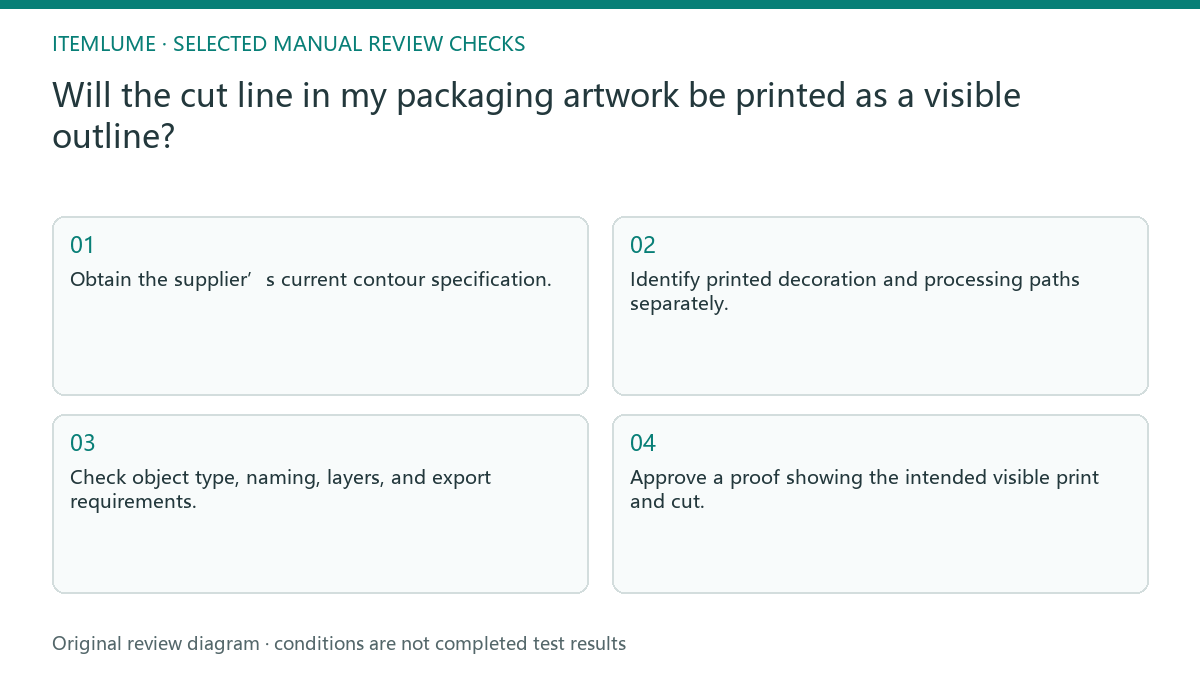
- Obtain the supplier’s current contour specification.
- Identify printed decoration and processing paths separately.
- Check object type, naming, layers, and export requirements.
- Inspect the final file’s separation with prepress support.
- Approve a proof showing the intended visible print and cut.
A fictional sleeve with a decorative border
Fictional exercise: a sleeve concept contains a thin teal border, while the supplier template contains a cutting contour. The seller initially places both on one layer because they look similar. The review labels the teal border as visible artwork and the contour as a processing object needing the supplier’s own treatment.
An externally prepared proof should show the border in the print and the contour only in its intended production role. If both appear as visible outlines, stop approval and ask prepress to correct the handoff. This is a fictional workflow example; no cutting machine or supplier proof was tested.
Keep proof approval tied to the actual file
Record the final file name, template revision, and supplier confirmation together. If the design changes after approval, review the export again. A screenshot with the contour hidden is not sufficient evidence, because the file sent to production may still contain that object in a visible printing separation.
Itemlume packaging output communicates a concept, not a supplier-approved dieline. External design and prepress must establish structural accuracy and processing roles. Stop when the supplier’s required contour settings are unknown; do not guess a familiar color or rename a raster edge and call it production-ready.
Printing and processing role checks
| Object | Evidence to request | Approval condition |
|---|---|---|
| Decorative border | Approved visible artwork | Remains in intended print |
| Cutting contour | Supplier processing specification | Handled in specified role |
| Named spot color | Final separation and prepress check | No unintended printed outline |
| Hidden preview layer | Actual delivered-file inspection | File behavior matches proof |
Use this matrix as a manual review record and add your own real evidence. Its conditions are not completed test results.
Sources and further reading
Sources for this page were checked on . Platform rules can change; verify the current source before publishing. Prompt examples and workflow recommendations are Itemlume editorial guidance, not independently measured results.
Frequently asked questions
Is a layer named Cut enough?
No. A layer name does not establish the supplier’s processing behavior or the final exported separation.
Should the contour always be removed?
Follow the supplier’s delivery requirements. Some workflows need it, while others require a separate processing file.
Can an AI box outline be used as a knife path?
Do not treat a visual concept as verified structural geometry. Use the supplier’s template and external production review.
BUILD FROM A PRODUCT YOU KNOW
Put this workflow into practice with your own product.
Explore the relevant tool first. AI copy and concept planning are free after sign-in. Image and video generation require available credits and the applicable account access.
Open Packaging studio Check pricing and credits