 Itemlume
PRACTICAL ANSWER / Logo studio
How do I keep a rejected logo concept from reaching a printer?
Give the approved logo a unique ID, record where it may be used, and send suppliers a controlled file package. Archive rejected concepts outside the production folder. A filename such as “logo-final.png” is not approval evidence; the approval record and matching ID are.
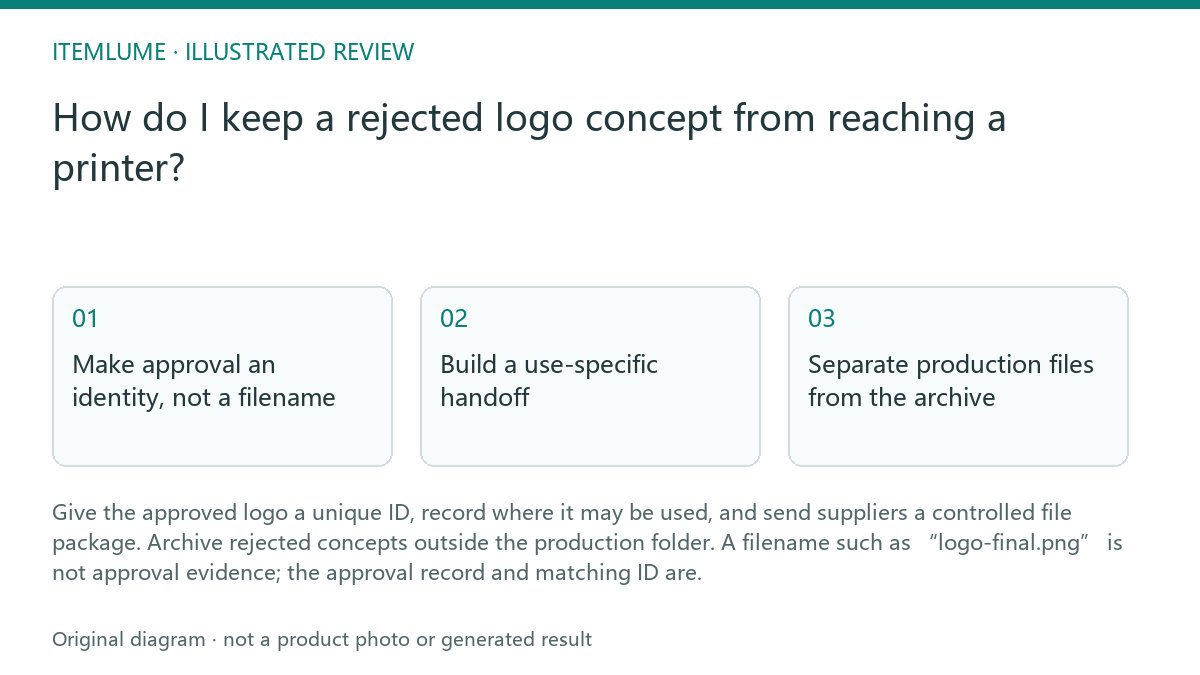
Make approval an identity, not a filename
A filename describes a file; it does not establish which concept was approved. Use a stable project ID that combines the brand, mark, version, and approval state, such as `ACME-MARK-V03-APPROVED`. Keep the same ID in the approval record, production folder, supplier brief, and proof review. If a revision is made, create a new version rather than overwriting the approved asset.
Record the approver, approval date, permitted color treatment, and intended use beside the ID. A logo approved for a website header is not automatically approved for a carton, stamp, label, or engraving. This is workflow advice for controlling creative files, not a claim that a design tool or storage system will enforce approval automatically.
Build a use-specific handoff
Prepare a short file manifest for each supplier. It should identify the approved master, the required output, the color mode or ink instruction, the physical or digital use, and any production notes. Separate the master logo from derivatives such as a one-color mark, reversed mark, or layout containing a tagline. Do not ask a supplier to choose among visually similar files.
For physical production, the manifest should also state what remains to be confirmed by the printer or manufacturer, such as material, process, dimensions, and proofing requirements. A clean file package can reduce mix-ups, but it does not prove fit, print performance, or manufacturing readiness. Those checks remain part of the supplier's production workflow.
- 1. Find the approved ID in the approval record, then compare it with the filename and file metadata.
- 2. Confirm that the requested use appears in the permission or use list.
- 3. Remove rejected and superseded concepts from the supplier-facing folder; retain them only in an archive with a clear status.
- 4. Check the manifest, artwork preview, and supplier proof against the same approved ID.
- 5. Stop the handoff if any identifier, use, or version differs, and resolve the mismatch before release.
Separate production files from the archive
Use distinct folders such as `01_APPROVED_FOR_RELEASE`, `02_WORKING`, and `99_ARCHIVED_REJECTED`. Put status in the folder structure and in the manifest, not only in a suffix like `old`, `latest`, or `final2`. Restrict the supplier share to the release folder. Keep an archive log that records why a concept was rejected or superseded without presenting it as a current option.
When a supplier asks for a replacement, issue a new package or a clearly versioned revision. Do not silently swap an asset while preserving the old filename. A rejected concept can still reappear through email attachments, cached downloads, or a local supplier folder, so the release record should identify the exact file and the date it was sent.
Resolve the two-supplier collision
Suppose Supplier A has `logo-final.png` showing a blue symbol and Supplier B has a black wordmark under the same name. Treat both as uncontrolled until you can trace them to an approval record. Compare their file hashes or, where that is unavailable, their dimensions, visible artwork, color treatment, and delivery dates. Ask both suppliers to pause production while the mismatch is investigated.
Choose the approved asset from the record, rename it with the controlled ID, and resend a use-specific package. Ask each supplier to confirm receipt of that ID in writing and to remove the superseded file from the active production folder. The process is complete only when the approval record, manifest, supplier copy, and proof all point to one version.
Topic-specific review
| Observation | Next check | Pass condition |
|---|---|---|
| Two suppliers hold different artwork under `logo-final.png`. | Compare each file with the approval record and controlled ID. | Only one file matches the approved ID and intended use. |
| A supplier received a logo but no use instruction. | Inspect the manifest for destination, color treatment, and output type. | The supplier can identify the exact allowed use without choosing a variant. |
| Rejected concepts remain beside release files. | Review folder permissions and archive status. | The supplier-facing folder contains only approved release assets. |
| A corrected logo was sent using the old filename. | Check version history, delivery date, and resend package. | The correction has a new version ID and an acknowledged receipt. |
| The proof looks different from the approved preview. | Compare artwork, color instruction, intended process, and proof notes. | The discrepancy is resolved or production is stopped pending approval. |
Sources and further reading
Sources for this page were checked on . Platform rules can change; verify the current source before publishing. Prompt examples and workflow recommendations are Itemlume editorial guidance, not independently measured results.
Frequently asked questions
Is `logo-final.png` enough to identify the approved logo?
No. Use a unique version ID linked to an approval record and use-specific manifest. “Final” is descriptive, not controlled status.
Should rejected logo concepts be deleted?
Usually archive them with a rejected or superseded status rather than leaving them in the release folder. Retention supports traceability; access control prevents accidental use.
Can a supplier decide which logo variant is suitable?
Give the supplier the approved variant and its intended use. Ask the supplier to flag production constraints, but do not delegate brand approval through an ambiguous file set.
BUILD FROM A PRODUCT YOU KNOW
Put this workflow into practice with your own product.
Explore the relevant tool first. AI copy and concept planning are free after sign-in. Image and video generation require available credits and the applicable account access.
Open Logo studio Check pricing and credits