 Itemlume
DIAGNOSTIC GUIDE / Product videos
Why is the exported advertisement blurry when my source clip is sharp?
Check whether the export used a proxy or preview before regenerating a sharp source clip. Editing substitutes can be useful for playback, but the delivery needs the approved original media and the intended export route. Verify the actual export settings rather than assuming the timeline preview is the master. A representative label frame should identify whether the problem begins before final delivery.
Editing proxies and delivery originals serve different roles
A proxy is a working representation, not the identity of the original clip. File linkage, offline originals and export options can affect which media participates in delivery. A higher output resolution can still wrap a softer input, so inspect the source selection alongside the output settings.
Record the original media path and attached proxy path separately. A sharp source in one folder does not establish that the export used it. Inspect the editor’s actual export workflow and any proxy choice; menu names and behavior should be checked against the installed version.
Check what the export actually references
Locate the approved original and the attached proxy for one affected clip. Confirm the original is online and correctly linked, examine the export options in the current editor, and make a short controlled export from the intended original route. Compare stable product detail against the source at the same viewing size before exporting the whole advertisement again.
Use the same representative frame in the source, timeline and export, keeping crop and scale comparable. Inspect label strokes and material texture rather than motion blur alone. Preserve the project state before changing proxy or media links so the diagnostic route can be retraced.
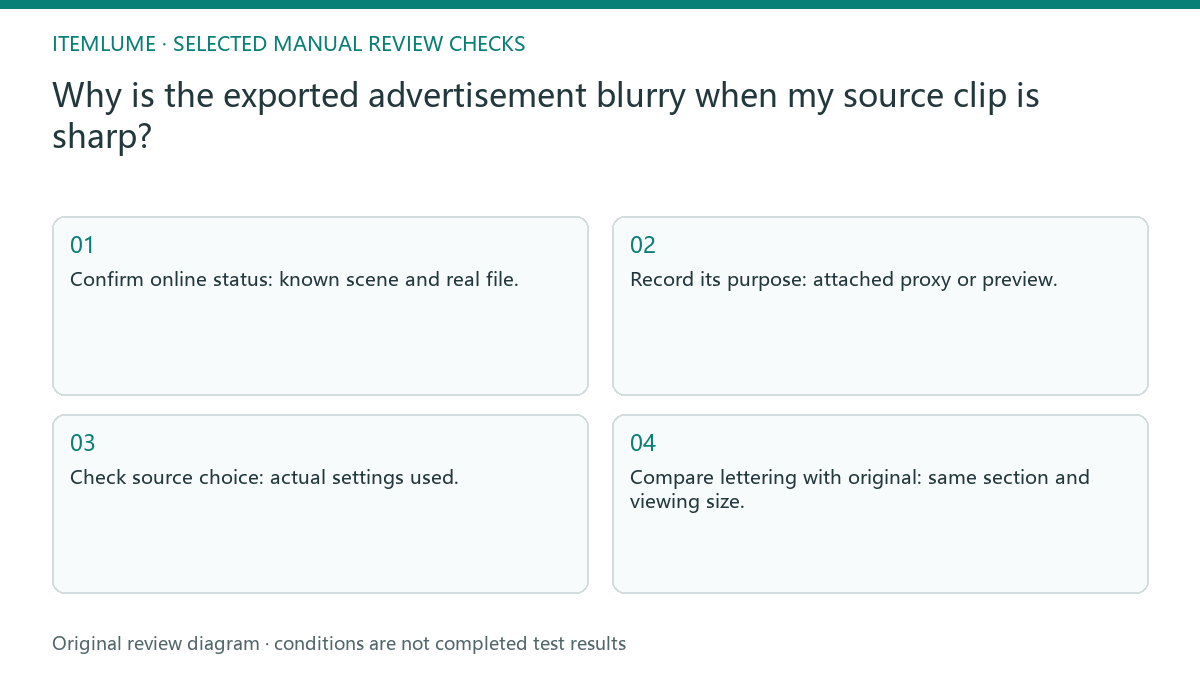
- Confirm online status: known scene and real file.
- Record its purpose: attached proxy or preview.
- Check source choice: actual settings used.
- Compare lettering with original: same section and viewing size.
Use a fine-label frame as the diagnostic anchor
Fictional exercise: a bottle label is readable in a source file but soft in an exported ad. The editor discovers a working-media choice relevant to that export. A short section is exported using the verified original route and compared with the old result. The diagnosis is recorded without claiming that every blurry export comes from proxies.
The fictional close-up compares a known original with a proxy-derived soft candidate. Restore the intended original-media route and export that interval again. If the original itself lacks the label detail, proxy settings cannot create it and a separate source-quality decision is needed. If the original-media route is correct but the detail is still soft, compare the source frame itself and the selected export scale. A failure already present in the original needs a new source decision; a failure only after delivery belongs to the editing route.
Reject a soft result before regenerating footage
Stop if the original itself is soft or if its identity cannot be matched to the approved scene. Fix source availability or detail evidence first; changing an export switch cannot create missing product information.
Keep the accepted output and its media route together. A later relink, missing original or changed export selection can invalidate the earlier comparison. The external editor controls proxy attachment and delivery. Itemlume supplies generated scene files; it does not audit another editor’s project links or export options.
Approved original to controlled result: decision worksheet
| Check | Evidence to record | Review action |
|---|---|---|
| Approved original | Known scene and real file | Confirm online status |
| Working substitute | Attached proxy or preview | Record its purpose |
| Export route | Actual settings used | Check source choice |
| Controlled result | Same section and viewing size | Compare lettering with original |
Use this matrix as a manual review record and add your own real evidence. Its conditions are not completed test results.
Sources and further reading
Sources for this page were checked on . Platform rules can change; verify the current source before publishing. Prompt examples and workflow recommendations are Itemlume editorial guidance, not independently measured results.
Frequently asked questions
Should I upscale a soft proxy export?
First restore the intended original-media route. Upscaling cannot reliably reconstruct missing label detail.
Does a sharp timeline preview approve delivery?
No. Check the actual exported frame and the media used for it.
Can this fix repair an unreadable original?
No. An unreadable original needs a separate source-quality decision.
BUILD FROM A PRODUCT YOU KNOW
Put this workflow into practice with your own product.
Explore the relevant tool first. AI copy and concept planning are free after sign-in. Image and video generation require available credits and the applicable account access.
Open Product videos Check pricing and credits