 Itemlume
PRACTICAL ANSWER / Product images
Why does my smooth product-image background have visible stripes?
Visible stripes usually come from gradient precision, export compression, color conversion, or a store-generated derivative. Compare the same crop at each stage first. If the bands already exist in the original, fix the source or lighting; if they appear later, revise export or delivery settings. Do not ask AI to redraw the product to hide a background-processing problem.
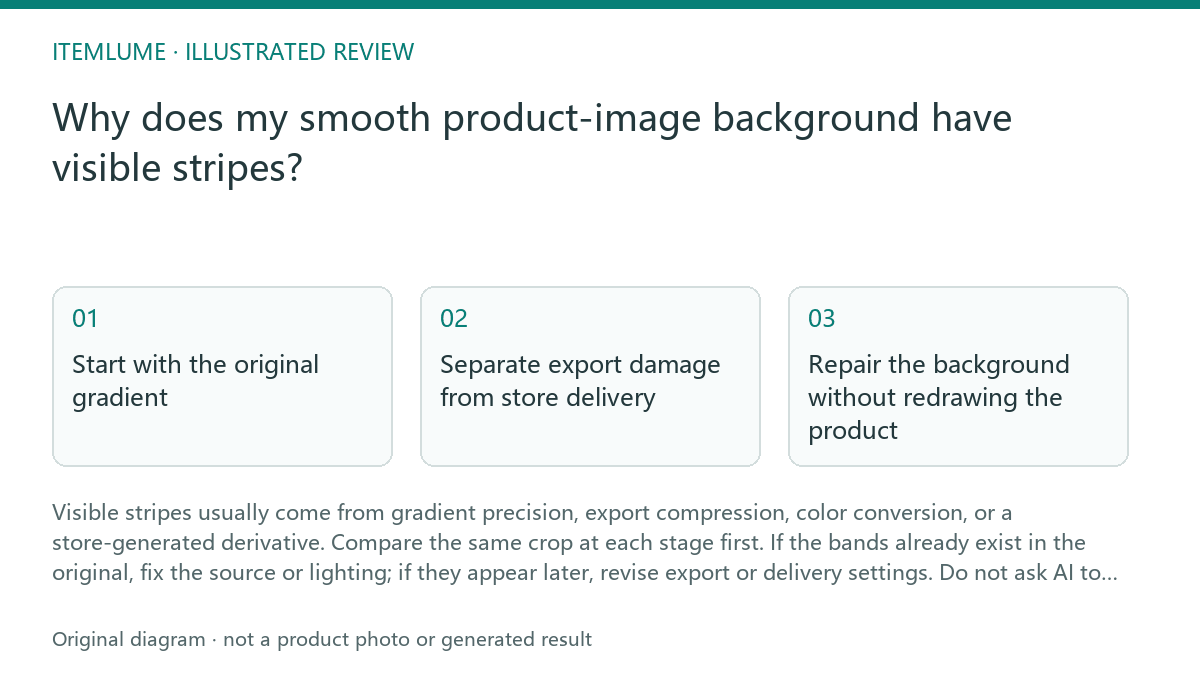
Start with the original gradient
A dark-blue speaker scene is especially revealing because a smooth shadow or backdrop may cover a narrow range of tones. If the original capture already contains steps, inspect the lighting, backdrop, and source file before exporting. A low-resolution gradient, aggressive tonal adjustment, or an 8-bit edit can leave too few nearby colors to appear smooth.
Use the product edge as an anchor. The speaker should retain the same outline, grille pattern, controls, and reflections while you inspect the background. If the stripes cross behind the object but stop at its edge, they are probably in the background. If the object itself has posterized highlights or changed markings, the problem is broader than background banding.
- Open the original and the exported file at the same display scale, then compare an identical background crop.
- Check whether the bands are visible before export, and whether they follow horizontal, vertical, or curved tonal transitions.
- Export a second test with the same dimensions but less aggressive compression and no unintended color conversion.
- Open both files outside the store preview and compare them with the store-delivered image or derivative.
- Stop changing the product source when the original is smooth and the bands appear only in a later copy; investigate export or delivery instead.
Separate export damage from store delivery
A file can look smooth locally and develop visible steps after a platform creates a resized or recompressed version. Compare the downloaded delivered file, not only the browser preview. A preview may apply its own scaling, sharpening, display profile, or caching behavior, so it is evidence of what a shopper sees but not always proof of where the change occurred.
Keep the comparison controlled: use the same crop, viewport scale, and image variant. Record dimensions, file type, and whether the store version is a resized derivative. A fictional test might show a smooth 2400-pixel source, a banded 1200-pixel export, and a smooth local 2400-pixel alternate. That pattern points to the export rather than the product scene.
Repair the background without redrawing the product
First preserve the original product pixels and work on a duplicate. Rebuild or soften only the affected background when appropriate, then compare the product edge at high magnification. A repair is unsafe if it changes the speaker’s silhouette, grille openings, button labels, highlight shape, or contact shadow. Those details are product evidence, not decoration.
For a smooth gradient, test a less destructive export and retain the intended color profile through the workflow. If the source itself is banded, adjust the background treatment or capture conditions rather than applying random texture over the whole image. Any added texture should be deliberate and checked at normal viewing size; noise that hides bands at 400% may make the image look dirty to shoppers.
Review the buyer-facing result
Review the image where it will be used: product gallery, feed, or another delivery context. Check the first view, a close inspection, and a smaller thumbnail. The same band may be obvious in a large gallery image but disappear at thumbnail size, while a changed product edge can remain misleading at every size.
Approve the image only when the background transition is acceptably smooth, the product remains unchanged, and the delivered copy matches the approved export. Treat this as a visual-quality check, not proof of product performance or color accuracy under every screen. If the store derivative still fails, keep the approved source and document which delivery copy needs investigation.
Banding review
| Observation | Next check | Pass condition |
|---|---|---|
| Bands are visible in the original dark-blue speaker scene | Inspect the backdrop, tonal edits, and source bit depth | Background is repaired without changing speaker edges or controls |
| Original is smooth; exported file is banded | Repeat the export with controlled dimensions and compression | Test export keeps the same product pixels and a smooth transition |
| Export is smooth; store-delivered derivative is banded | Download and inspect the delivered derivative | The approved source is retained and the affected delivery copy is identified |
| Bands appear only in a browser preview | Compare downloaded files at the same scale | The conclusion distinguishes preview rendering from file damage |
Sources and further reading
Sources for this page were checked on . Platform rules can change; verify the current source before publishing. Prompt examples and workflow recommendations are Itemlume editorial guidance, not independently measured results.
Frequently asked questions
Can AI remove background banding safely?
It may alter product edges or surface details, so it is not the first diagnostic step. Compare source, export, and delivered copies before making any generative edit.
Should I add noise to hide the stripes?
Only as a controlled background treatment after confirming the source and export path. Reject it if it makes the scene visibly dirty or changes the product edge.
Does a smooth local file prove the store image is correct?
No. Inspect the store-delivered copy or derivative at matching dimensions and scale. A local file does not establish what the storefront serves.
BUILD FROM A PRODUCT YOU KNOW
Put this workflow into practice with your own product.
Explore the relevant tool first. AI copy and concept planning are free after sign-in. Image and video generation require available credits and the applicable account access.
Open Product images Check pricing and credits